Working with Profiles
A profile is a set of generated device fingerprints that any service will treat as a live and unique user. A profile stores all browser settings and remembers them on launch.
#Creating a profile
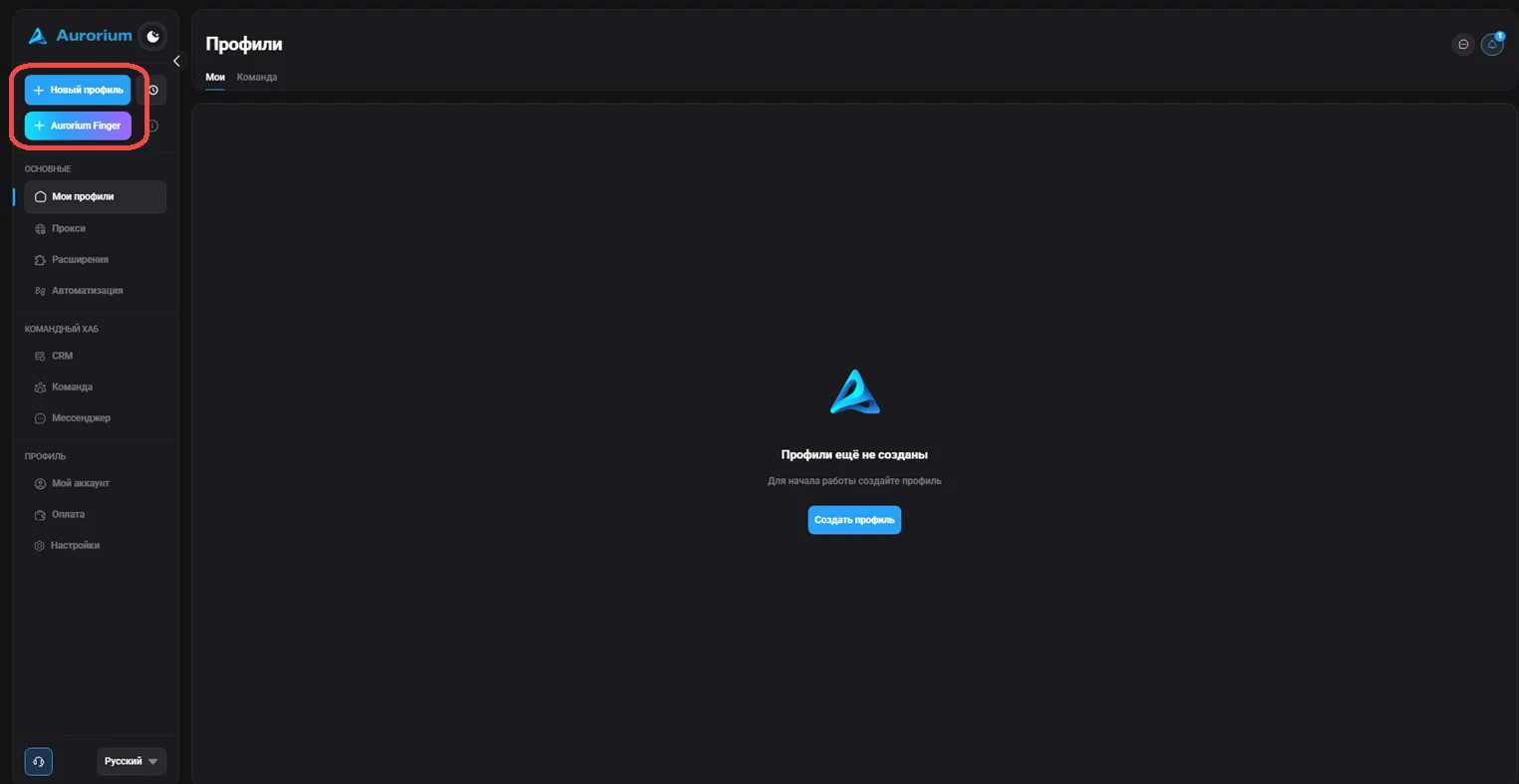
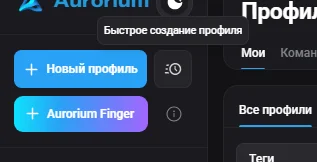
A profile can be created in three ways: creating a new profile, bulk profile creation, and a quick profile. A profile is created using the "Aurorium Finger", "Create profile", "New profile" or "Quick profile" buttons. After clicking, the new profile window opens, where you can configure all values in detail to form the fingerprint: Name (required field), Folder, Tags, Browser core (Aurorium by default), Operating system, Proxy ("No proxy" by default), Start page, Cookie (.txt or .json), Description, Notification, and the "Advanced" block. When finished, click "Save profile" in the right panel — the profile will appear on the main page in the "All profiles" list.
#Quick profile creation
A quick profile is a profile created in one click, without opening the detailed setup window. The profile is generated automatically with a random fingerprint and a random name. The profile's operating system version matches the device from which Aurorium Browser is running. You can create a quick profile using the "New profile" button in the left panel; all values can be changed later via profile editing.
#Bulk profile creation
This feature lets you generate several profiles at once — based on a template or without one (in which case profiles are generated with random fingerprints and names). On the main page click "Bulk creation", select a template (optional), specify the number of profiles and click "Generate profiles". After generation, check the profiles you need on the left and click "Create" at the bottom right. Unwanted profiles can be selected and removed via "Delete selected".
#Templates
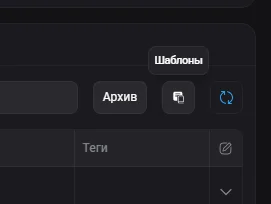
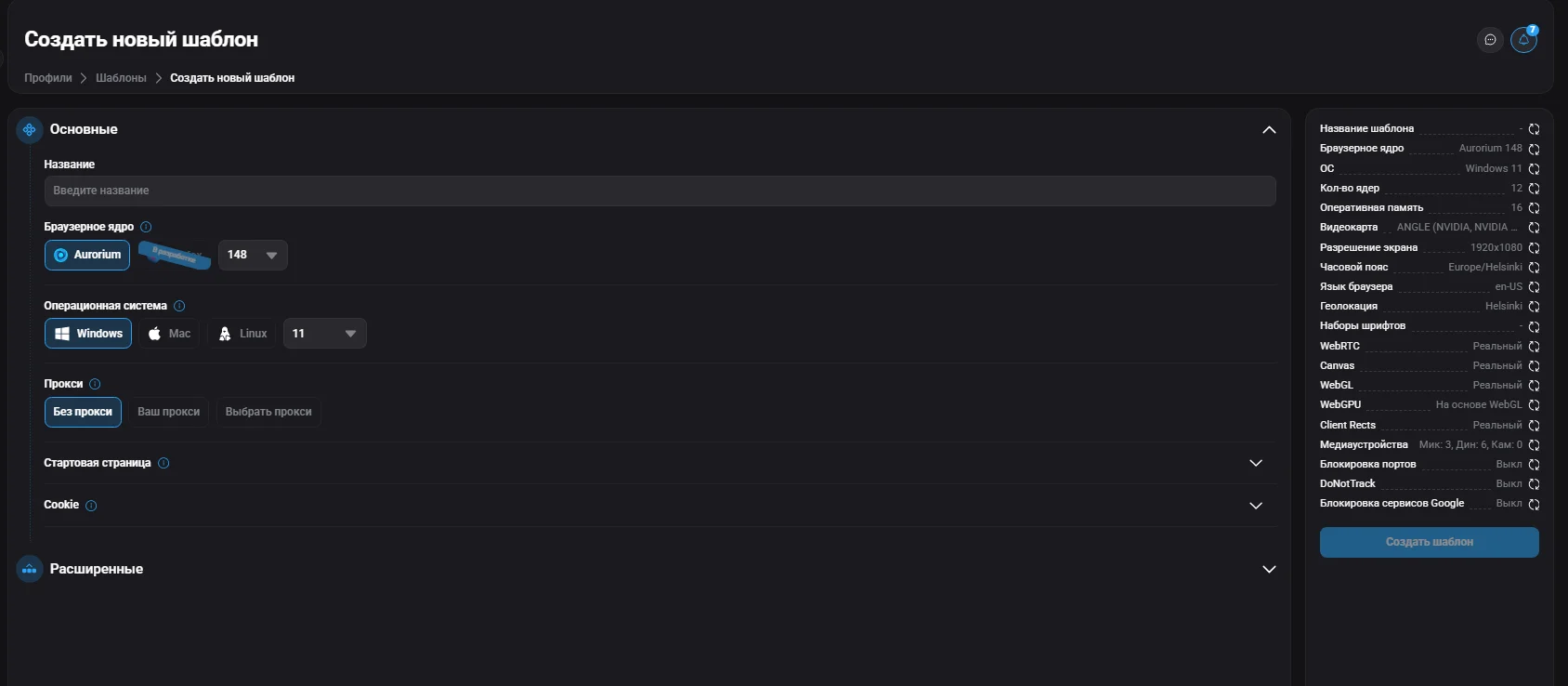
Templates are preset profile configurations that let you quickly generate many profiles with identical settings. Access them via the "Templates" button on the main page. To create a template, click "Create" — a window identical to the profile creation window opens, where you specify the template name and detail all fingerprint parameters. When finished, click "Save" — the template will appear in the list of available templates.

#Deleting a template
To delete a template, simply click the trash icon located to the right of the template.
#Launching a profile
After a profile of any type is created, it appears on the main page of the client. Select the profile you need and click the "Start" button.
#Editing and deleting a profile
Managing an existing profile is available through the context menu (the "..." button next to the profile). Available actions: Manage folders, Edit (Core version and type, OS — cannot be edited), Import/Export cookie, Transfer to user, Cookie robot, Duplicate, Archive and Delete.
#Transferring a profile
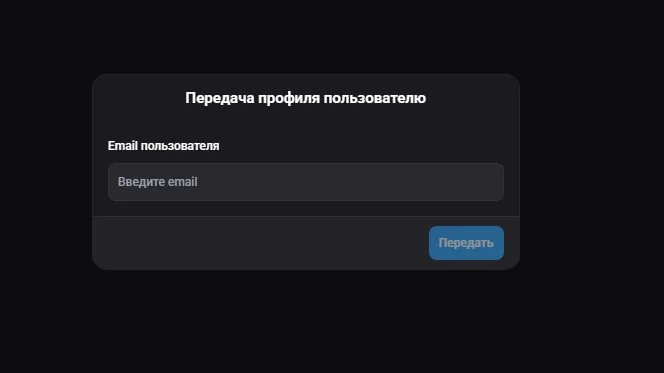
This feature lets you transfer a profile to another user. Open the transfer window via the profile context menu ("...") → "Transfer to user". In the "User email" field enter the recipient's email and click "Transfer". After this the profile becomes available to the specified user and is no longer available to the user who transferred it.
#Cookie / Cookie Robot
The Cookie robot automatically collects cookies for a profile. Importing cookies restores the account session, letting you log in to previously used accounts without re-authentication. Without cookies you would need to authenticate again for each account.
#Cookie
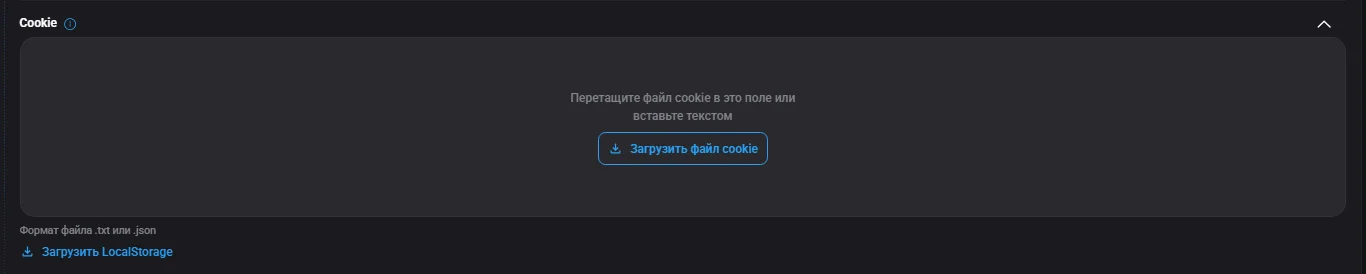
When creating a profile, you can upload a file with saved cookies in the "Cookie" field: drag the file into the field or paste it as text. Supported formats: .txt or .json. Important: importing cookies erases all existing cookies in the profile and does not merge with them — the uploaded data fully replaces the current ones. After uploading, the profile keeps the session data and will be recognized by sites as a previously used account. Loading Local Storage in .txt or .json formats is also available.