#Basic team actions
A section of basic operations for creating and configuring a team and its departments.

In Aurorium you can be the owner of one team, a member of another, and also have your own workspace using a single account. Below are the ways to interact with teams, members and invitations.
A section of basic operations for creating and configuring a team and its departments.
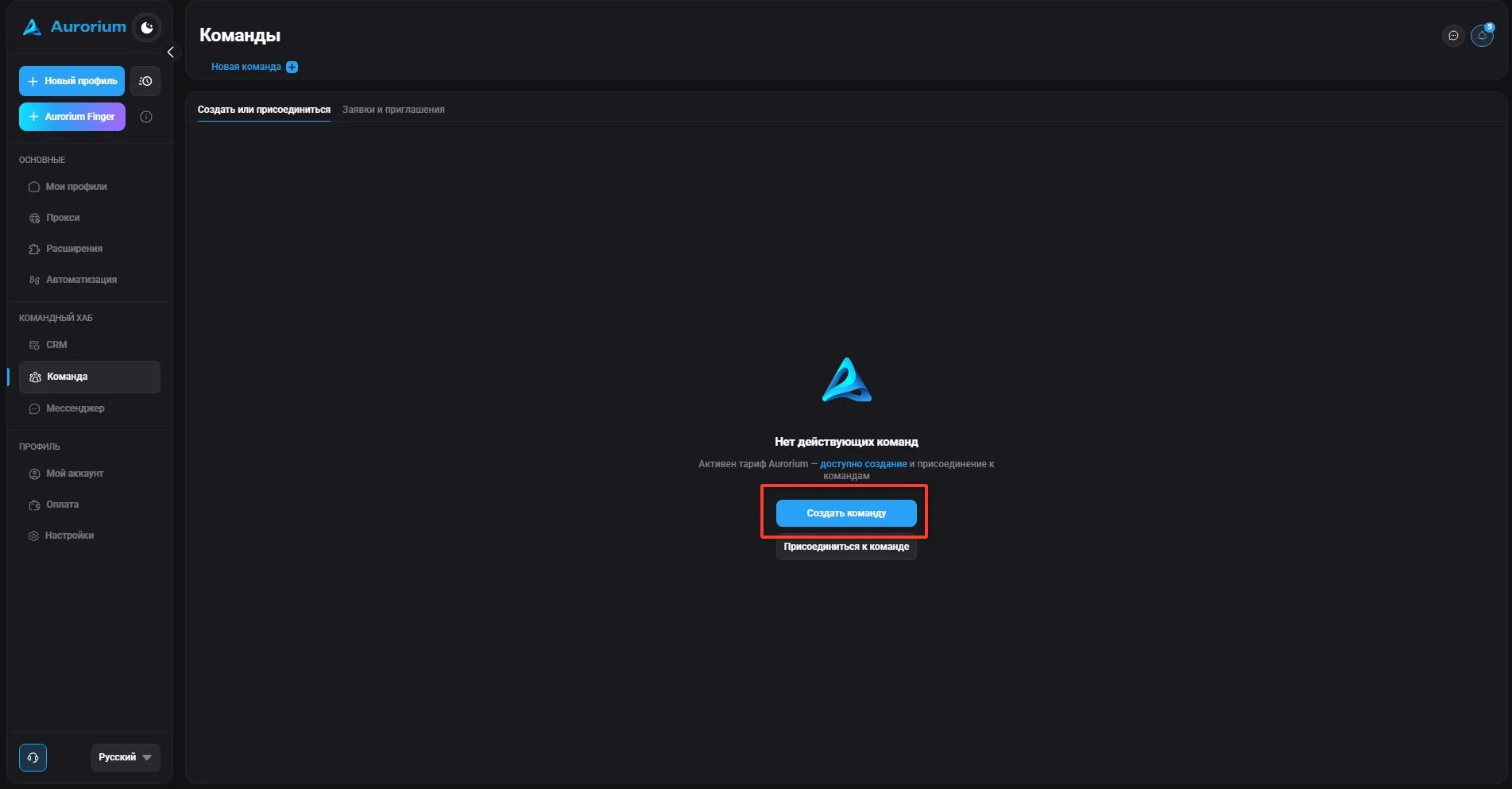
To create a team, click "Create team", specify its name and a short name if necessary. The created team will appear at the top of the team list. Limits: a user can create no more than ten teams and be a member of no more than twenty; teams can only be created on the "Aurorium" plan. The number of available profiles and additional users is determined by the terms of the paid plan.
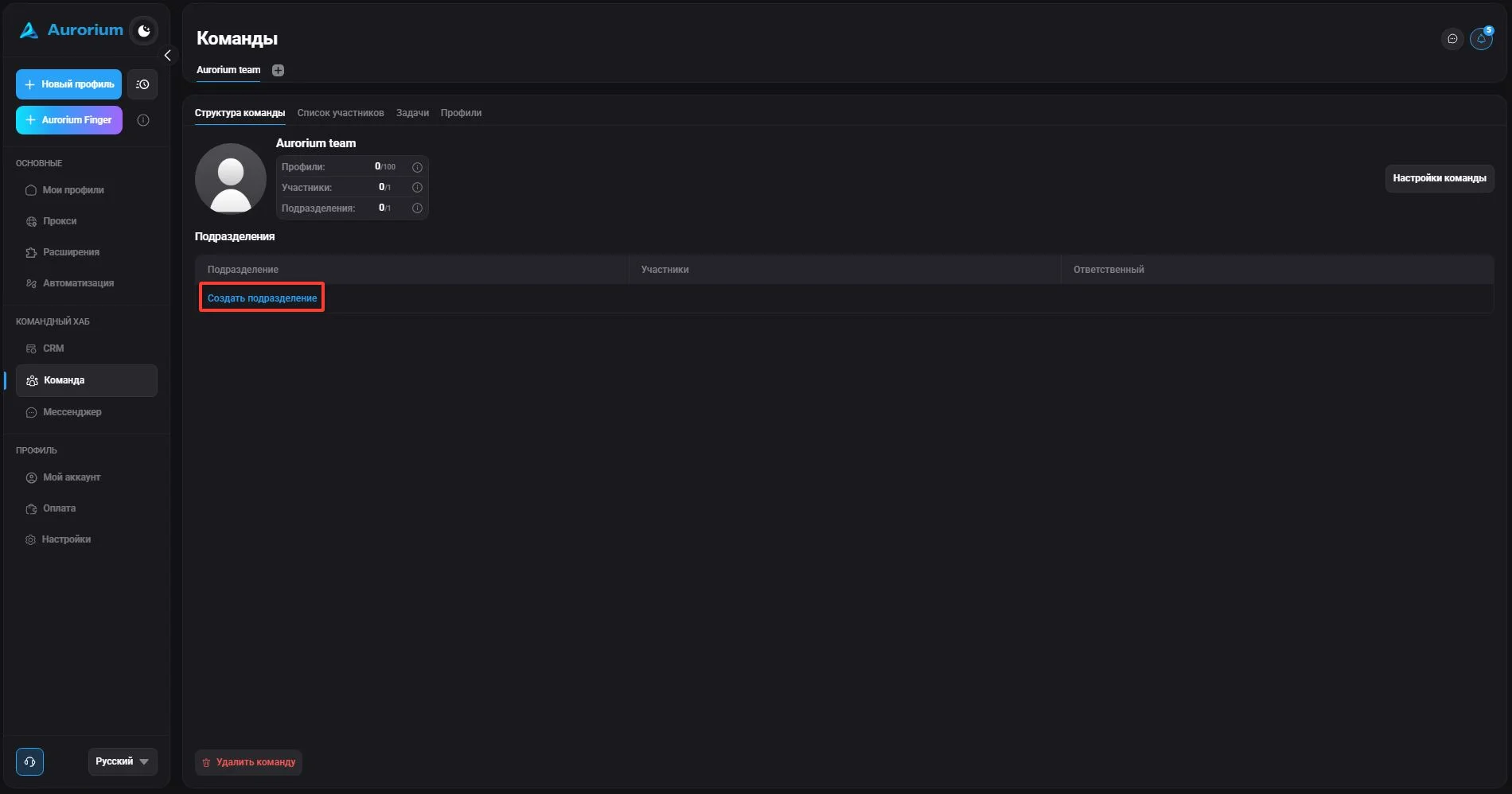
Once a team is created, add departments. Click "Create department", and in the window that appears specify the name, short name (optional) and the person responsible. The created departments will appear in the list.
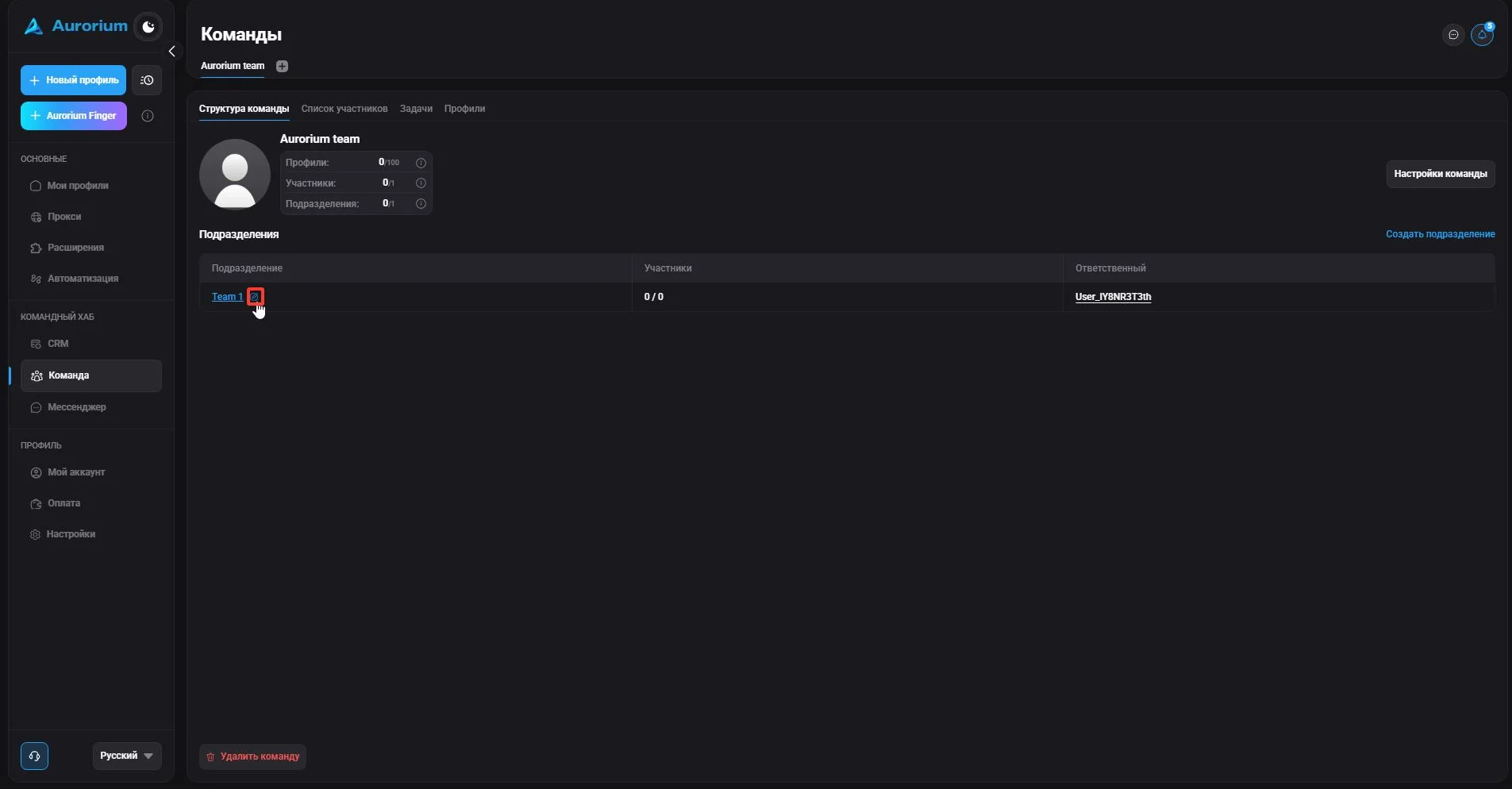
To change a name, reassign the person responsible for a department or delete it, hover over the department and click the pencil icon. Make the changes and click "Confirm".
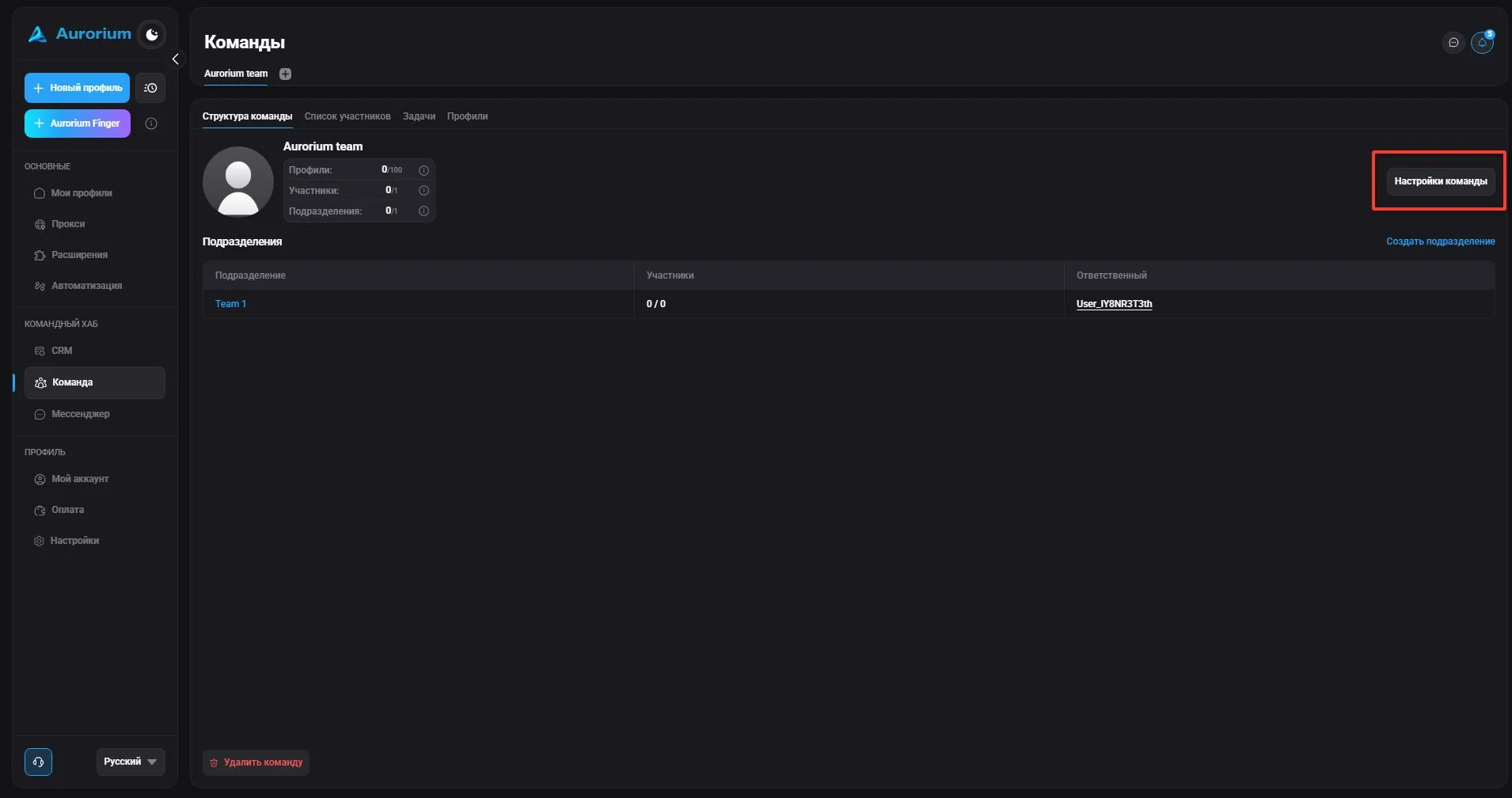
To change the number of members, profiles, departments and the team owner, use the "Team settings" button.
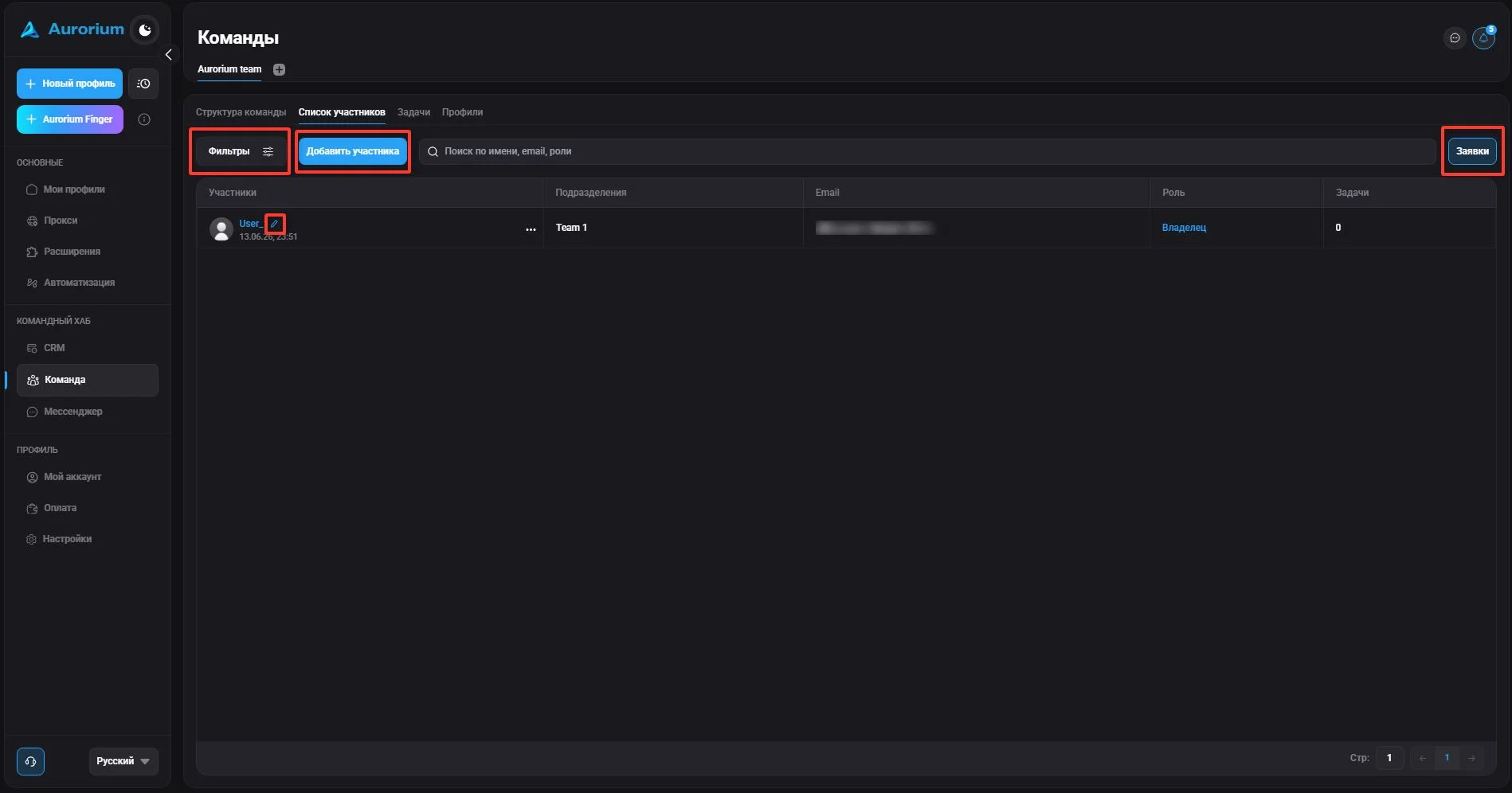
In this section you can filter members by role and department ("Filters"), add a member ("Add member"), view those invited to the team ("Requests"), and edit existing members via the pencil icon.
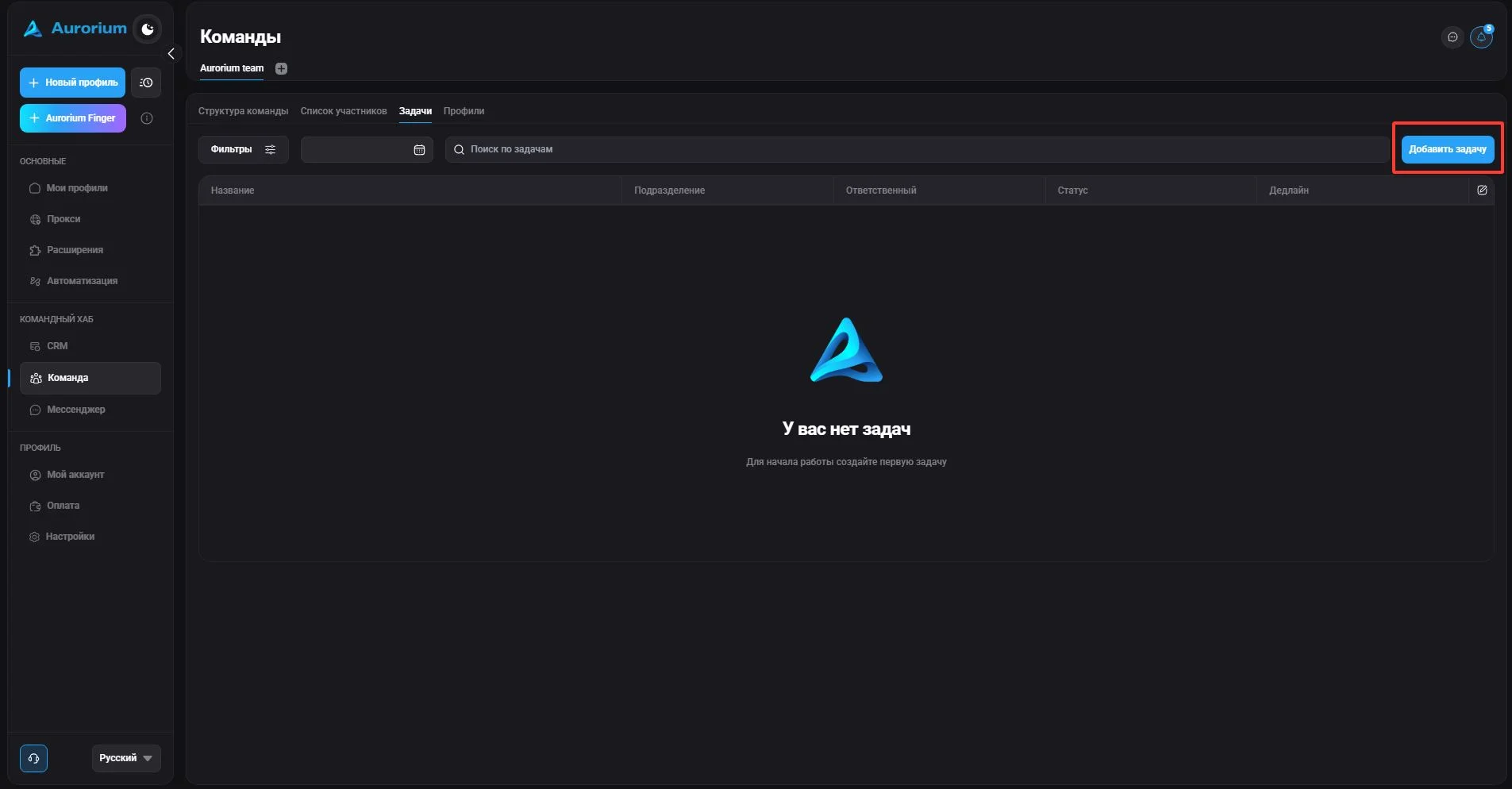
In this section you can view existing tasks (name, assignee, status, deadline), add a task, filter tasks by department/status/assignee ("Filters"), edit tasks and configure their display.
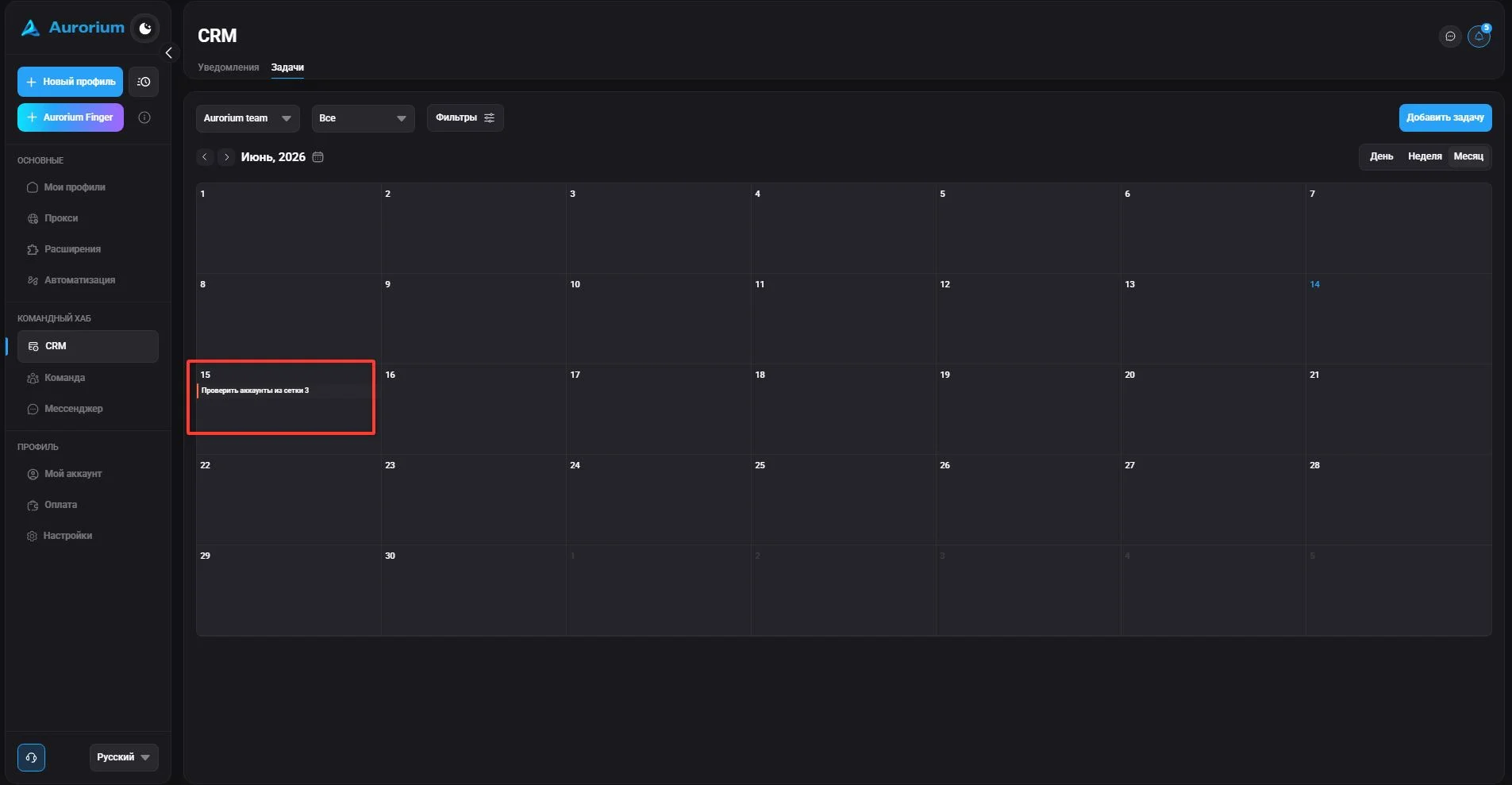
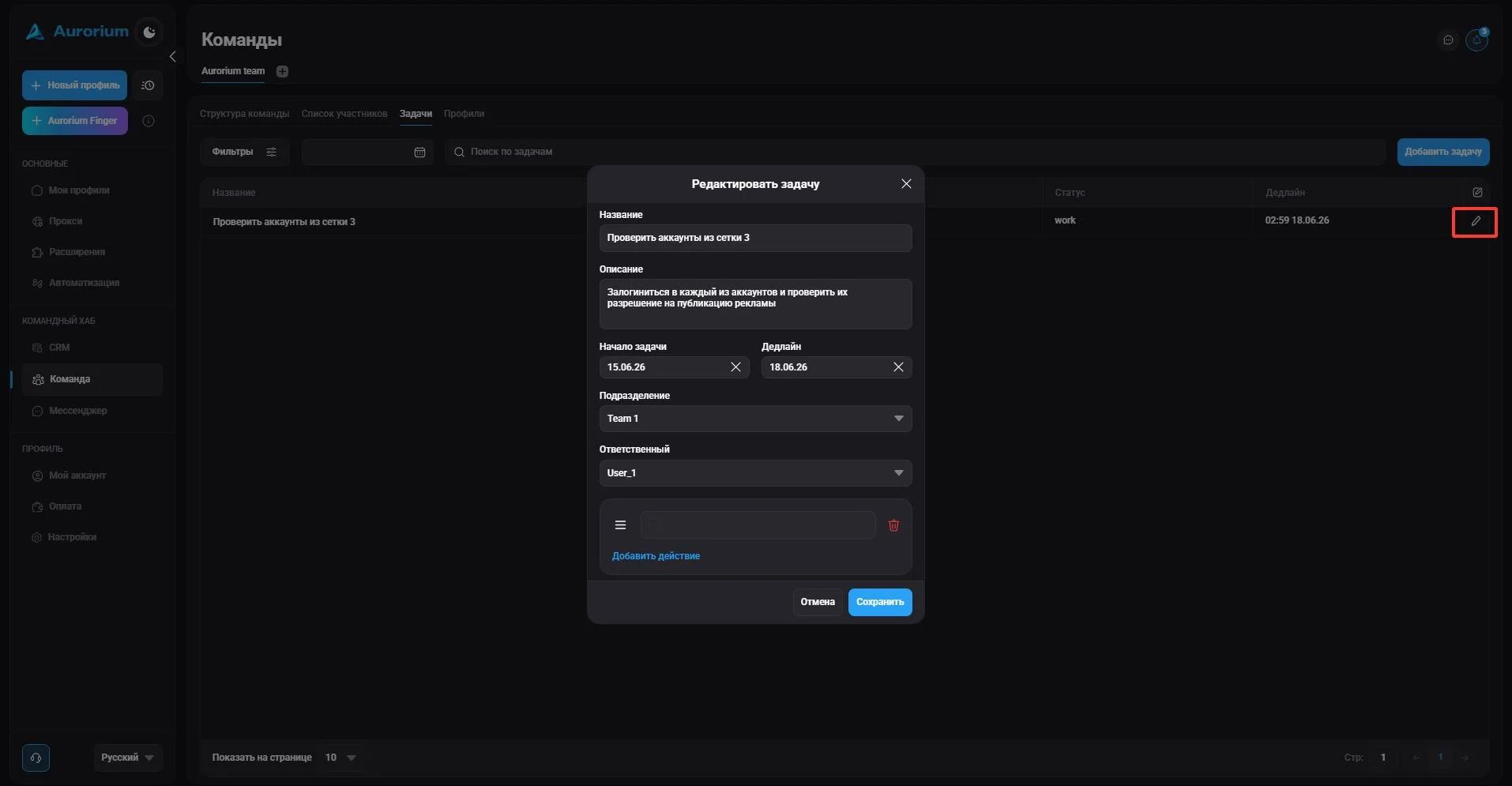
Click the "Add task" button. Available fields: Name, Description, Task start, Deadline, Department, Assignee, and "Add action" — lets you build a to-do list, reorder items, mark them as done or delete them. After creation, the task appears in the corresponding week of the calendar in the "Tasks" section.
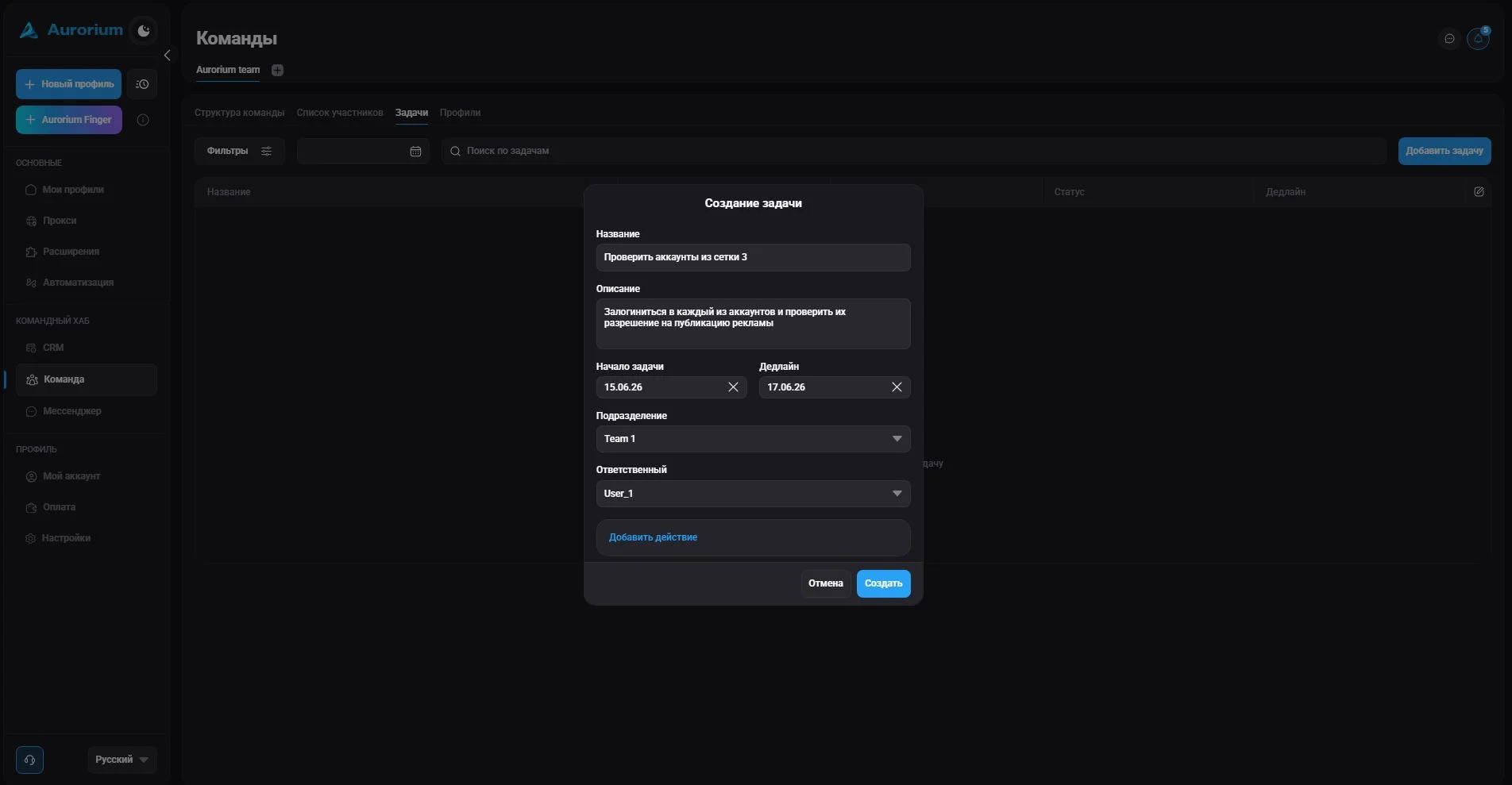
To edit a task, click the pencil icon and make the changes.
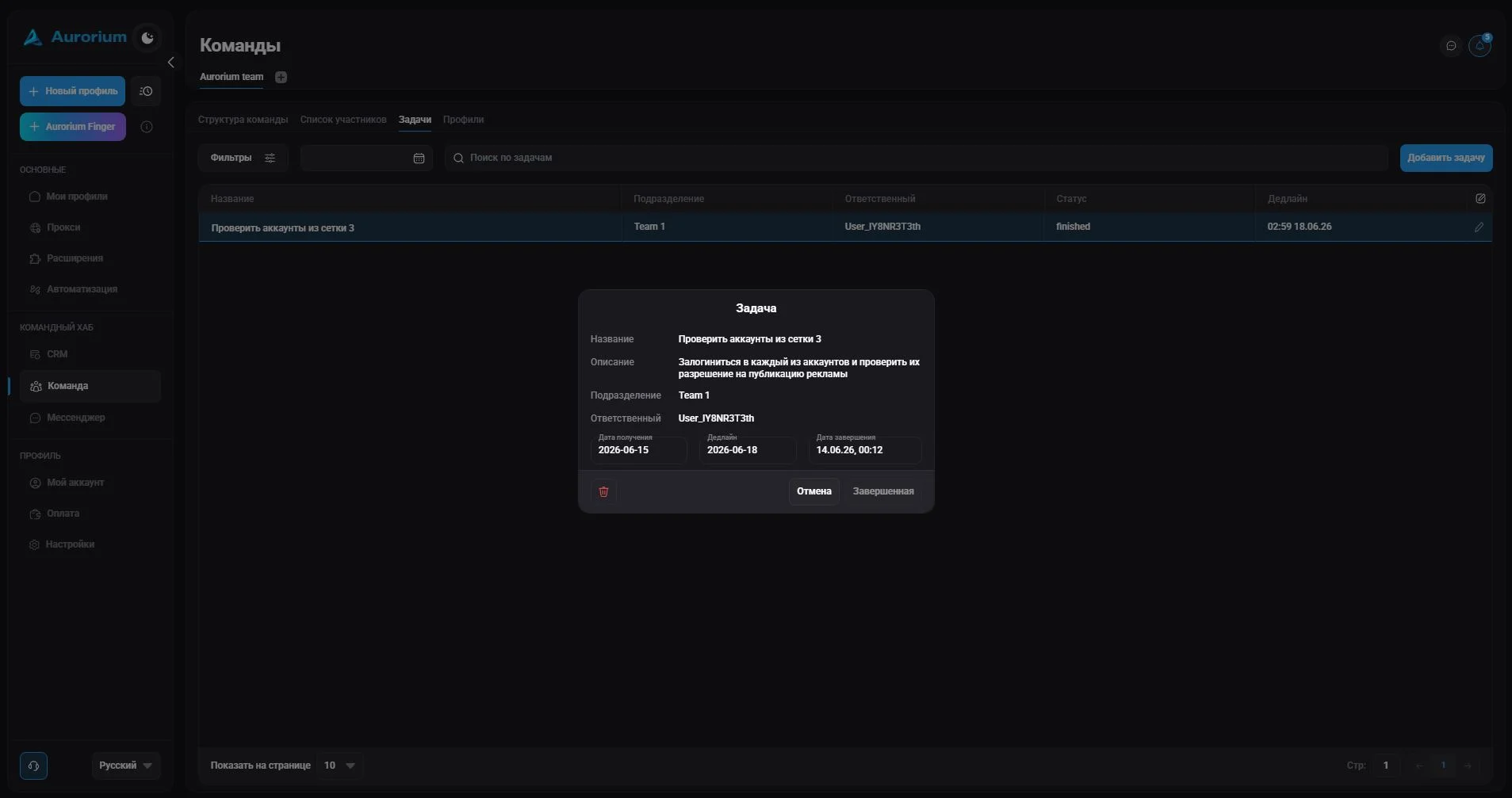
If a task is done, it should be completed. After this the task remains in the calendar but is marked as completed. This action is irreversible.
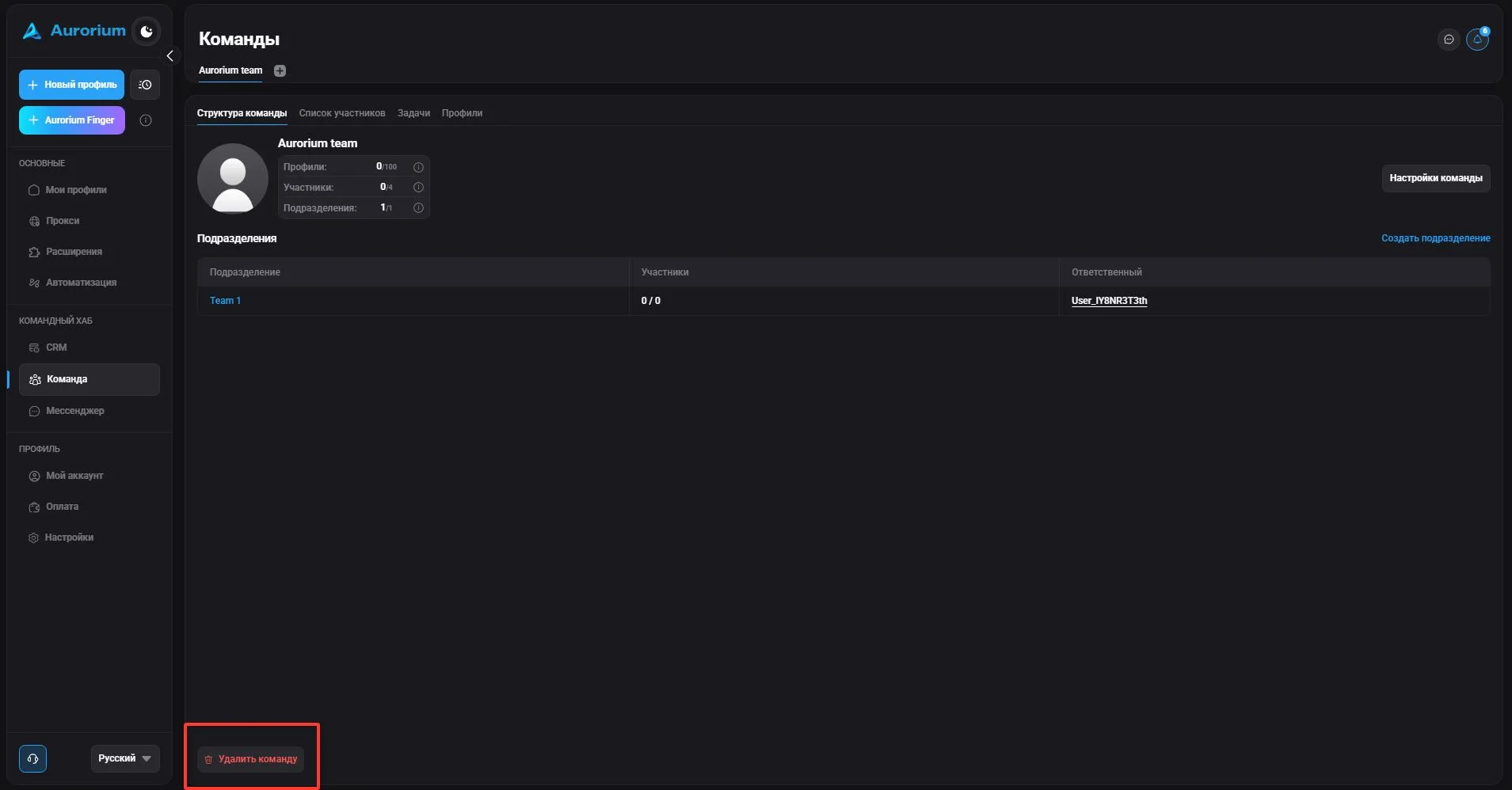
To delete a team, click "Delete team". After clicking the trash icon, a code will be sent to your email (you can also use 2FA if it was set up beforehand) — enter it and click "Confirm". After confirmation, the team becomes inactive and all its content is deleted.
In the "Team" section you can invite users, remove them from the team, change their information and permissions. The permission to manage the team (viewing the team composition and editing its members) can be granted when inviting or editing a user.
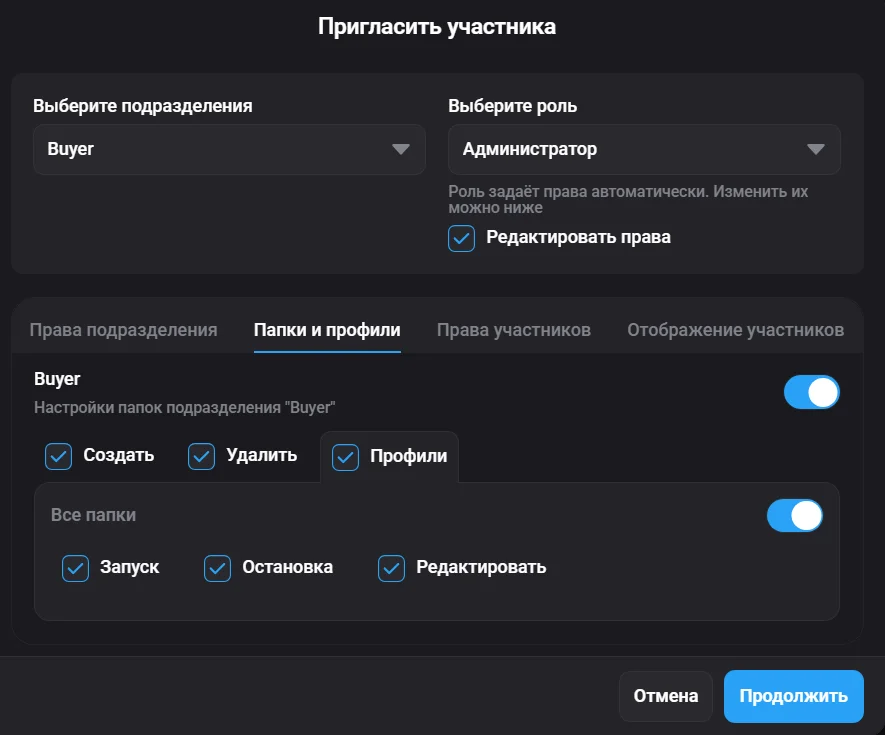
Within a team, all members share access to all profiles. For convenient management there are text roles: "Administrator", "Employee" and "Team lead". Each role's permissions can be edited in the member invitation window by checking the "Edit permissions" checkbox.
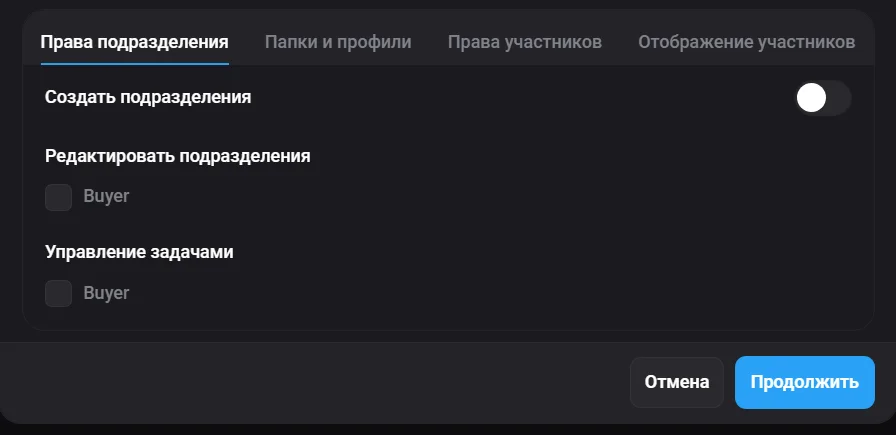
This section handles granting permissions to edit/create departments and manage tasks for a specific role.
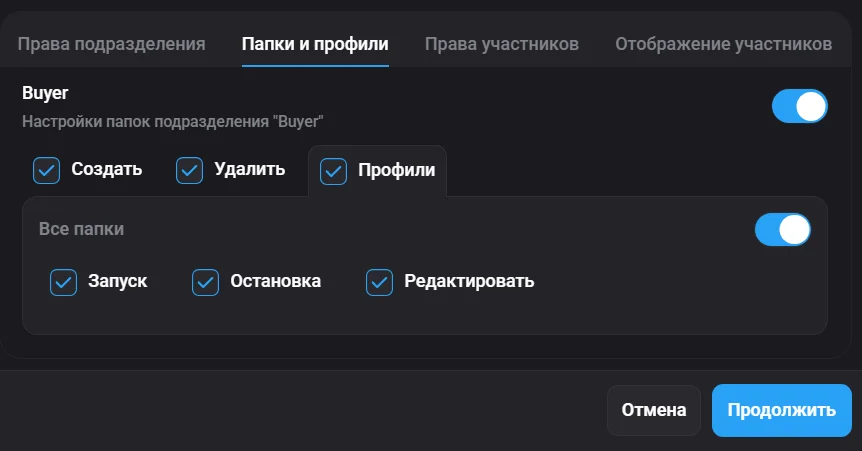
This section handles granting permissions for all kinds of actions with profiles for a specific role.
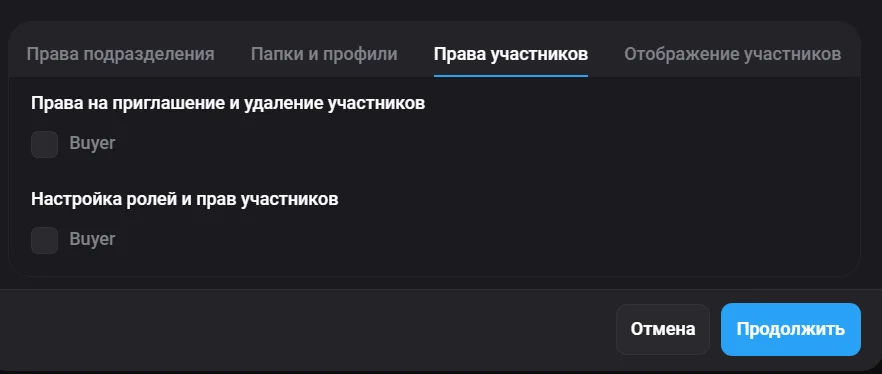
This section handles granting permissions to invite and remove members for a specific role.
This section handles granting permissions for the visual display of each added role for a specific role. If necessary, permissions and all roles can be edited manually.
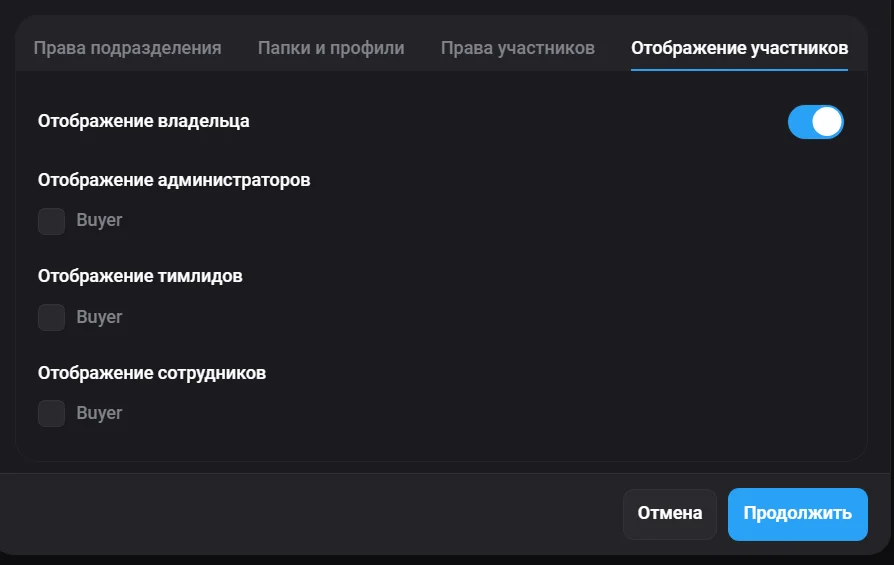
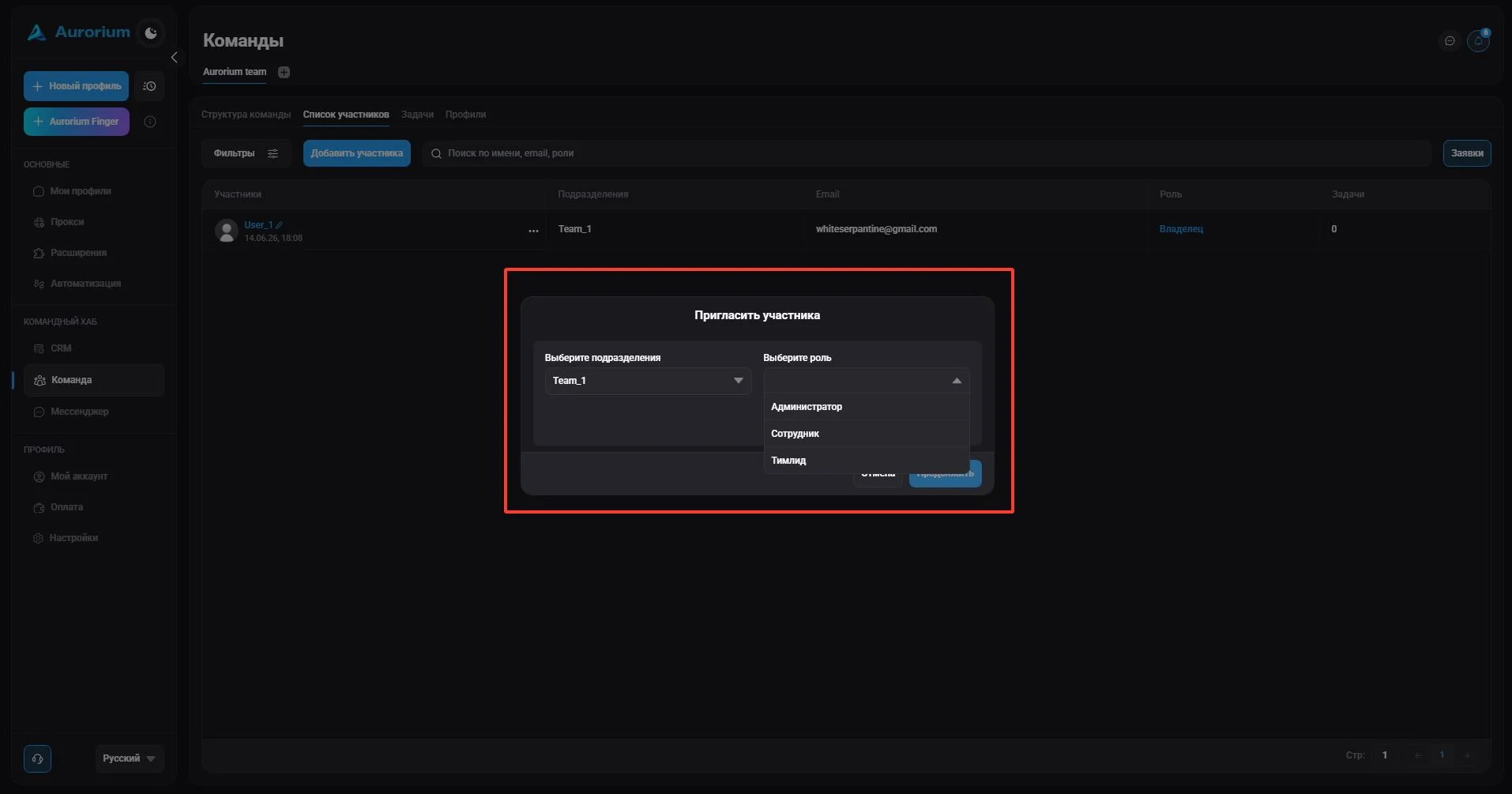
After selecting a role and configuring permissions, click "Continue". In the window that appears, enter the email of the member to invite (or several emails separated by : or a space), and copy the invitation code.
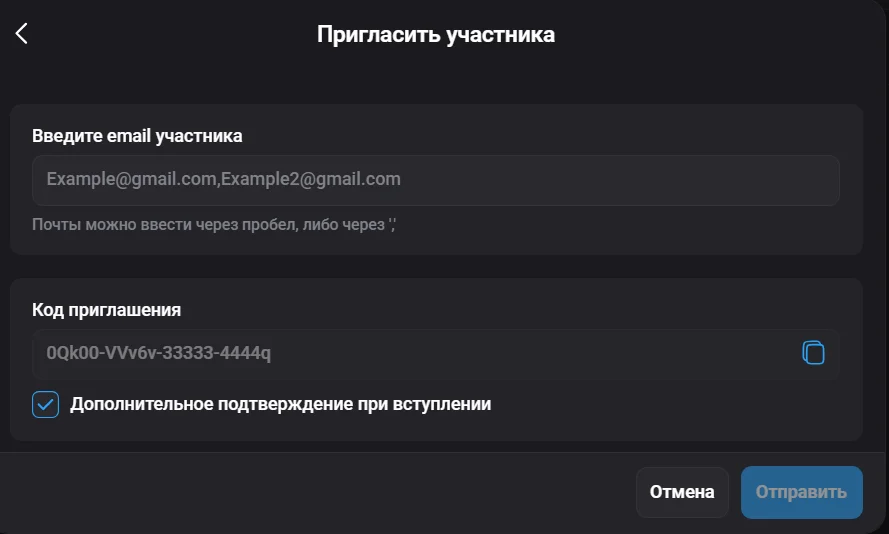
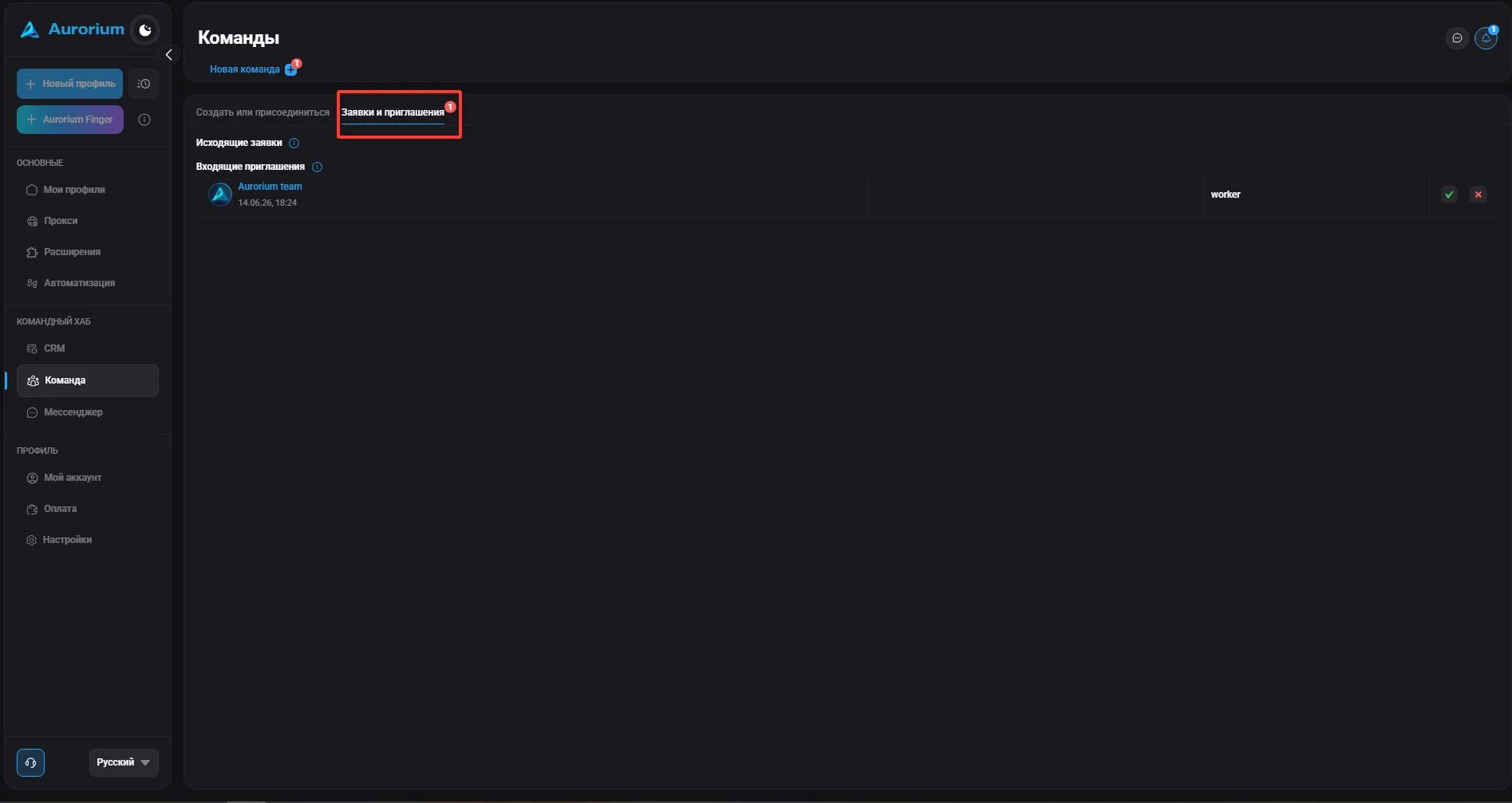
After receiving an invitation, the member needs to create an account (if they don't have one) or log in to an existing one. The "Requests and invitations" section shows the list of incoming invitations — check the one you need and confirm the action. If the invitation does not require a code, you will be automatically added to the team with the assigned role and department; otherwise enter the invitation code and wait for confirmation.
Team chats are a separate space for communication within the team, with its own structure and access permission system.
Only the team owner can create team chats. When creating a chat, the owner specifies its name and chooses who to invite. Invitations to a chat are also sent only by the team owner.
Access to the chat member list depends on your permissions. If you have enough permissions, you see all members of the department and can interact with them in the chat. If you don't have enough permissions, the department members are invisible to you and you only see those added to the specific chat.